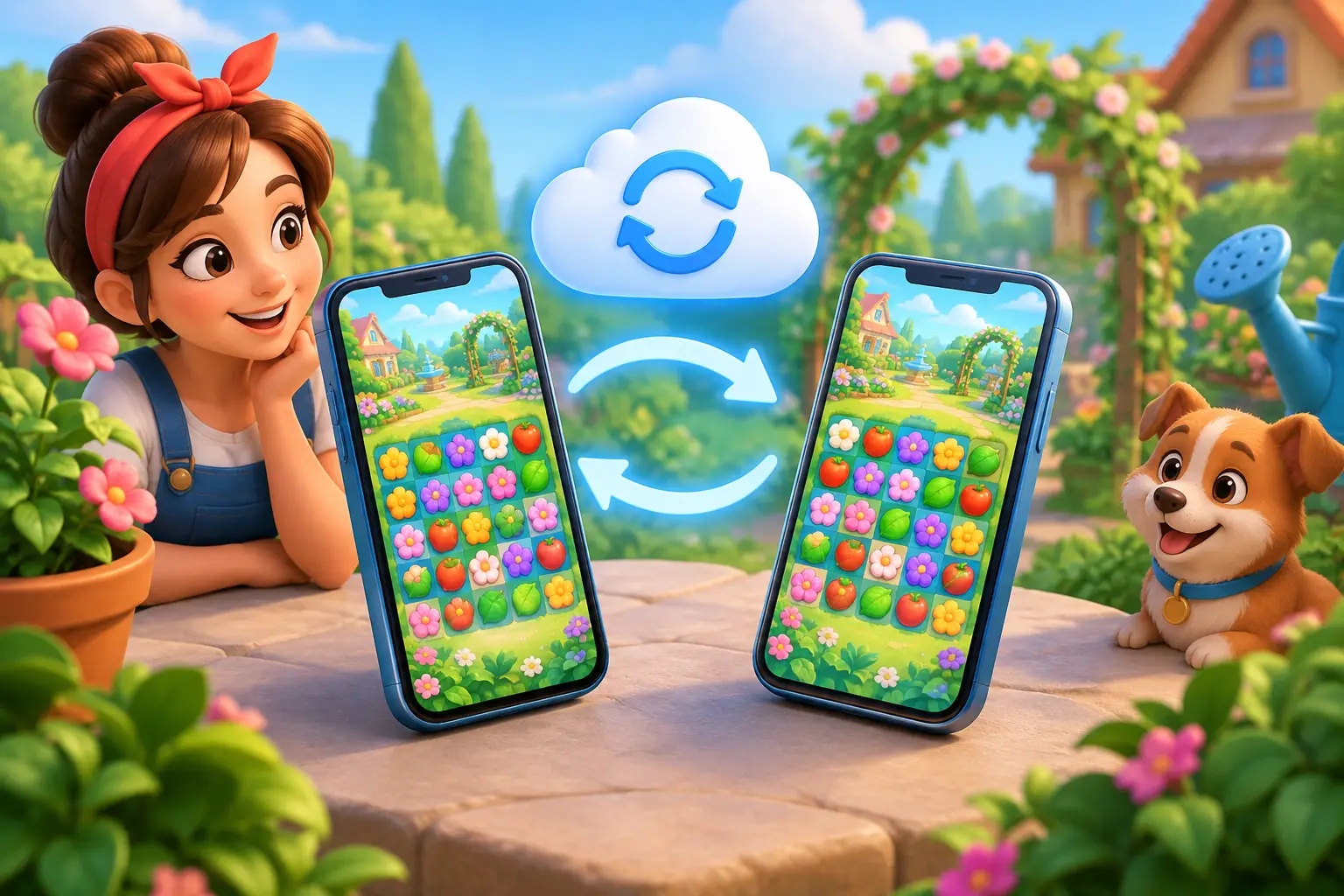
Your garden is more than a pretty corner of the game. It holds the blooms you chose, the levels you cleared, the collections you completed, and the rewards you saved for a tricky board. This account syncing guide explains how to protect that progress before you move to a new phone, play on a tablet, or reinstall the app.
For most players, syncing takes only a few minutes. The key is to connect your game to the same account on every device before making a change. Once that connection is in place, your progress has a home beyond a single phone.
Account Syncing Guide: Before You Switch Devices
Start with the device that has your most current Garden Match Puzzles progress. Open the game, visit the Settings menu, and look for the account, sign-in, or save option. The wording can vary slightly by device and game version, but the goal is the same: connect the game to an account you can use again.
Choose a sign-in method you recognize and can access reliably. If you play on iPhone or iPad, that may be your Apple account. On Android, it may be the account connected to your device. Some versions may also offer another supported sign-in option. Use the same method and the same account every time you want to retrieve your garden.
Before closing the game, give it a moment while connected to Wi-Fi or mobile data. You do not need to sit and watch a progress bar, but it is wise to finish your current level, return to the main garden screen, and let the game settle. That small pause helps ensure your latest level completion, garden changes, and earned rewards are ready to follow you.
A quick check can offer extra peace of mind. Make a note of your current level and take a screenshot of your garden or player profile. This is not usually necessary for syncing, but it gives you a useful reference if you ever need help locating the right save.
Moving to a new phone or tablet
Install the game on your new device and open it while connected to the internet. Complete any opening prompts until you can reach Settings, then select the same sign-in method you used on your previous device. Be careful here: a different Apple or device account can create a separate new save rather than open your existing one.
After you sign in, allow a short moment for your progress to appear. Your level, garden, collections, and other account-based progress should return together. If the game asks which save you want to use, check the level number and garden state before confirming. Choose the save that reflects your most recent play.
If you regularly switch between a phone and tablet, make syncing part of your routine. Finish a level on one device, return to the main screen, then open the game on the other device. Avoid playing the same account offline on both devices for long stretches. Two devices can each hold different recent progress, and the game may need you to choose which version to keep when they reconnect.
What Account Syncing Protects
A properly connected account is designed to keep the parts of your game that represent your ongoing journey together. That includes your cleared levels, garden decorations, earned stars, collection progress, event progress where applicable, and the rewards tied to your account.
Your device itself still matters for a few things. Notification preferences, sound settings, and some local display choices may need to be set again after an app reinstall or a move to a different phone. That is normal. Think of account syncing as moving the garden and its history, while a new device may still need its own small setup touches.
Optional purchases and premium reward access are also associated with the account or store system used for the transaction. If something does not appear after you have signed into your original game account, do not make another purchase to solve the problem. First, confirm that you are using the same device store account and look for a restore option in Settings if one is available. A support team can help investigate if the item is still missing.
Reinstalling without losing your garden
Reinstalling can be useful when an app is not opening correctly, but it should come after one important check: make sure your game is already connected to your account. Deleting an app removes its local data from that device. An account connection is what lets you bring your progress back afterward.
Before reinstalling, open the game if you can, verify that you are signed in, and return to the garden after your latest level. Then reinstall the app from your usual app store. When it opens, sign in with the exact same account before you invest time in a fresh tutorial save.
If you cannot open the old app at all, install it again and try the sign-in method you normally use. Many players see their progress return as soon as the correct account is recognized. If it does not, resist the temptation to keep trying random accounts. That can make it harder to tell which save belongs to you.
When Your Progress Does Not Appear
Most syncing issues come down to one of three things: the game is offline, the wrong account is signed in, or the new device has not had time to refresh. Start with the simple checks. Confirm your internet connection, close and reopen the game, then visit Settings to verify the account shown there.
Next, compare the account details with your old device. It is common to have more than one email address, Apple account, or device profile over the years. The account that matters is the one connected when your garden was at its most current level, not necessarily the one you use most often elsewhere.
If you see a newer but empty garden, do not panic. It usually means a new local save was created before the original account was connected. Sign out only if the Settings menu clearly shows an option to do so, then sign in again with the account used on your original device. When the game presents a choice between saves, read the level numbers carefully.
For a problem that remains unresolved, contact in-game support from Settings or the Help area. Include practical details: your current device, previous device, approximate highest level, the sign-in method you used, and screenshots if you have them. Those details help the team identify your garden much faster than a general request for missing progress.
A Few Habits That Keep Syncing Simple
Account syncing works best when it is treated as a quiet bit of garden care rather than an emergency task. Connect your account early, especially before changing devices. Keep your sign-in details private, and do not share an account if you want each player to have their own garden and progress.
It also helps to let the game reconnect after a long flight, a spotty commute, or time away from Wi-Fi. You can still enjoy a relaxing round when you have a moment, but opening the game online afterward gives your latest progress a chance to catch up across your devices.
Your garden should feel like a place you can return to, whether you are fitting in three levels before bed or settling in for a longer weekend session. A few minutes spent connecting the right account keeps every new bloom, careful decoration, and hard-won clear ready for the next device you choose.